I Found 9 Hidden Subscriptions in My iPhone Bill in 10 Minutes — Here's Exactly How I Did It
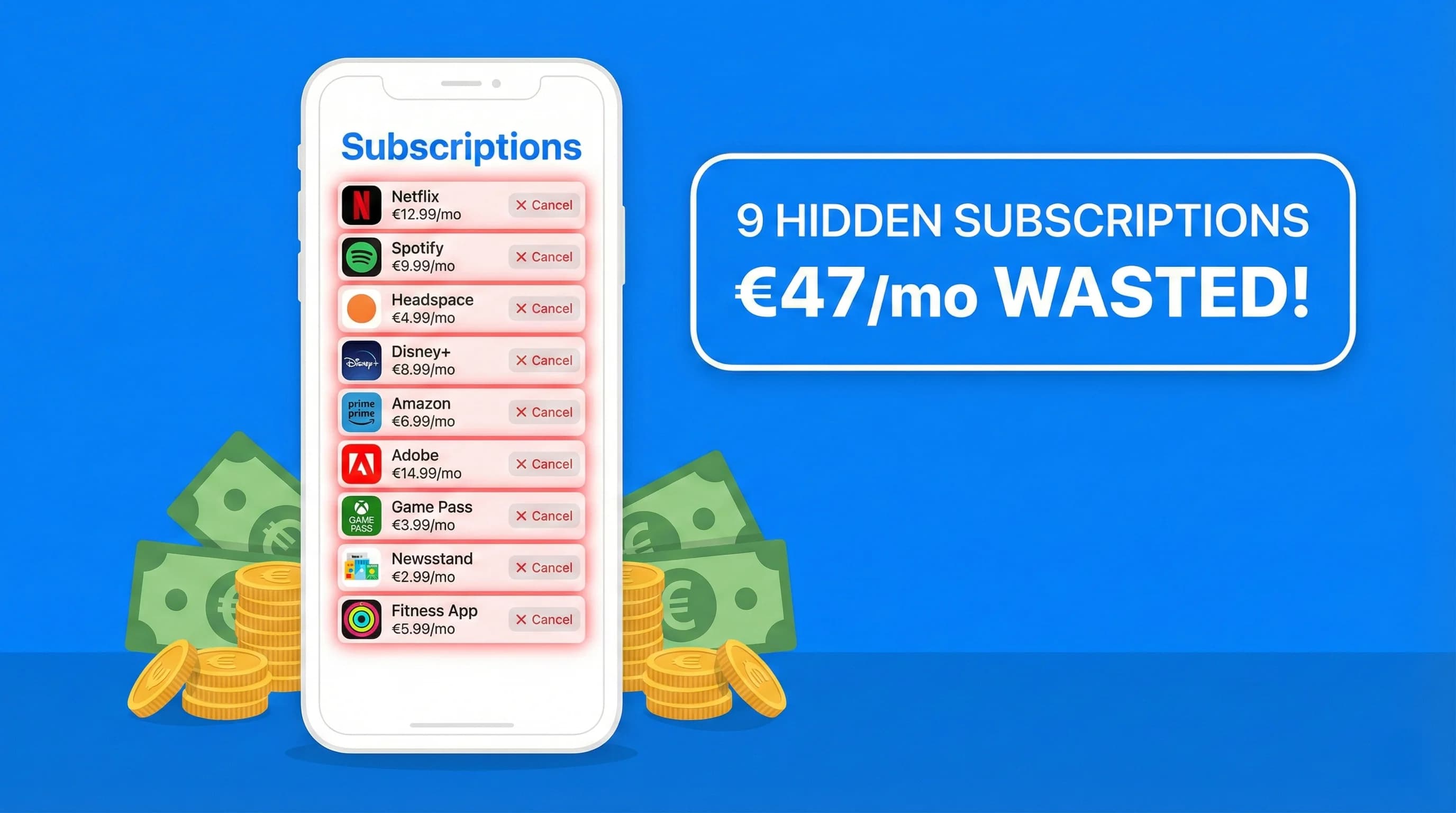
Table of Contents
Last Sunday morning I was bored, so I opened the Subscriptions section on my iPhone. I expected to find maybe three or four things — Netflix, Spotify, iCloud. What I found instead was nine charges I had completely forgotten about, totaling €47 per month I was paying for apps I hadn't opened in months.
Note: The prices shown below are in euros because my account is set to a European region. The steps themselves work identically on any iPhone, regardless of currency. The C+R Research study of U.S. consumers found a similar pattern of underestimated charges.
One was a meditation app I tried during a particularly stressful week in 2024. Another was a language learning app I used for exactly six days before giving up on my "learn Italian" phase. There was even a $2.99/month "premium" for a weather app I deleted off my phone last March.
The thing that shocked me wasn't finding them. It was how easy it was to find them — once I knew where to look. Apple buries the full subscriptions list in a confusing place, and most people never look there.
This is the exact process I followed. It took me under 10 minutes and I cancelled 6 of the 9 on the spot.
Why iPhone Subscriptions Are So Easy to Forget
Before the steps, let's be clear about why Apple subscriptions are uniquely sneaky:
- Apple One bundles disguise individual costs: If you pay for Apple One, the individual services (TV+, Arcade, Music) feel "free" — but you may be paying separately for some of them on top of the bundle.
- App Store trial-to-paid conversions are frictionless: Apps can offer a 7-day free trial with zero visible confirmation that you'll be charged. You close the app once and forget.
- Charges appear as "APPLE.COM/BILL" on your bank: Not "Duolingo" or "Calm" — just a generic Apple billing line. Many people miss these entirely when reviewing bank statements.
- Annual subscriptions are invisible for 11 months: A $49.99/year app only hits your statement once. By the time it charges again, you have no memory of signing up.
Key insight: Apple processes billions in subscription revenue annually. Their job is to make subscribing as frictionless as possible. Cancelling is — by design — harder to discover.
Step 1: Find the Hidden Subscriptions List (2 Minutes)
This is the step most people miss entirely. Here's where it actually is:
- Open Settings on your iPhone.
- Tap your name at the very top (your Apple ID).
- Tap Subscriptions.
That's it. You now see every active and recently expired App Store subscription attached to your Apple ID.
What You'll See
- Active subscriptions: Everything currently charging you. Sorted with the next billing date shown.
- Inactive subscriptions: Recently cancelled or expired — useful to confirm a cancellation went through.
Take a screenshot of the full list before you do anything. You'll want a record.
Heads up: This list only shows App Store subscriptions. Subscriptions you signed up for directly on a website (Netflix, Spotify via browser, etc.) won't appear here — you'll need to check those separately. We cover that in Step 4.
Step 2: Apply the 30-Day Value Test to Each One (5 Minutes)
Go through every active subscription and ask one question: Did I use this in the past 30 days?
Not "would I use it," not "might I use it soon" — did you actually open it in the last 30 days?
If the answer is no, it goes on your cancellation list. Period. You can always resubscribe later when you actually need it. In the meantime, you're getting nothing for that money.
The Subscriptions I Found (And What I Did)
| App | Monthly Cost | Last Used | Decision |
|---|---|---|---|
| iCloud+ 200GB | €2.99 | Daily | Keep ✓ |
| Apple TV+ | €9.99 | 2 weeks ago | Keep ✓ |
| Meditation app | €12.99 | 4 months ago | Cancel ✗ |
| Language learning app | €6.99 | 8 months ago | Cancel ✗ |
| Weather app premium | €2.99 | App deleted | Cancel ✗ |
| News aggregator | €4.99 | 3 months ago | Cancel ✗ |
| Fitness app | €9.99 | 6 months ago | Cancel ✗ |
| PDF scanner | €3.99 | 2 weeks ago | Keep ✓ |
| VPN service | €3.99 | 1 month ago | Keep ✓ |
Six cancelled. €41.94/month saved, which is €503/year. From 10 minutes of work on a Sunday morning.
Step 3: How to Cancel iPhone Subscriptions (2 Minutes)
Cancelling from the Subscriptions list is straightforward:
- From Settings → [Your Name] → Subscriptions, tap the subscription you want to cancel.
- Scroll down and tap Cancel Subscription.
- Confirm the cancellation.
You'll keep access until the end of your current billing period — Apple doesn't issue refunds for partial periods, but you don't lose what you paid for either.
What If There's No "Cancel" Button?
If you don't see a Cancel button, the subscription was likely purchased directly through the app's website, not through the App Store. In that case:
- Open the app → go to Account/Settings → look for Billing or Subscription.
- Visit the company's website and cancel from your account dashboard.
- If you can't find the cancellation option, email their support and request cancellation — legally, they must comply.
Cancelling Inactive App Subscriptions You Deleted
Deleting an app from your iPhone does NOT cancel its subscription. This is one of the most common mistakes people make. The subscription keeps charging until you manually cancel it through Settings.
This is exactly why the weather app was still charging me — I deleted the app months ago thinking that cancelled it. It didn't. Always cancel from Subscriptions first, then delete the app.
What to Do If the Deleted App Already Charged You
If you deleted the app, missed the renewal, and only noticed after the charge landed, handle it in this order:
- Cancel the subscription first. Do this from Settings → [Your Name] → Subscriptions so the next renewal cannot happen.
- Take a screenshot of the cancellation confirmation. Keep it until the next billing cycle passes.
- Request a refund from Apple. Go through Apple's report-a-problem flow, choose the charge, and explain that the app was deleted and unused.
- Add the renewal date to your tracker if you keep access. Some services continue until the paid period ends, even after cancellation.
Apple does not guarantee every refund, especially for older charges, so the best outcome is preventing the next one. But for a recent accidental renewal, it is worth filing the request immediately instead of waiting.
Step 4: Find the Subscriptions That Don't Appear Here (3 Minutes)
The App Store Subscriptions list only catches a portion of your iPhone-related recurring charges. Here's where else to look:
Apple ID Purchase History
Go to Settings → [Your Name] → Media & Purchases → View Account → Purchase History. Look for any one-time charges that are actually annual subscriptions.
Your Bank Statement — Search for "APPLE.COM/BILL"
Open your banking app and search for "APPLE" in transactions. Every charge that says "APPLE.COM/BILL" is coming from the App Store. Cross-reference these amounts against what you see in your Subscriptions list. If a charge amount doesn't match anything on the list, something is slipping through.
Family Sharing Complications
If you're part of Family Sharing, some family members' subscriptions might appear on your payment method. Check Settings → [Your Name] → Family Sharing → Subscriptions to see what the family is collectively paying for.
iPhone Carrier Billing
Some apps allow billing directly to your phone carrier (charged on your monthly phone bill). Check your carrier's app or bill for any "digital purchases" or "third-party charges."
How to Remove Inactive Subscriptions on iPhone
Once you cancel a subscription, it moves to the "Inactive" section of your Subscriptions list. Apple keeps this history visible but you can't delete it — it's just a record of past subscriptions.
If inactive subscriptions are cluttering your view, note that Apple automatically removes them from the inactive list after one year. There's currently no manual way to delete them from the list, but they won't charge you anything — they're just there as a record.
Step 5: Track What You Kept — So This Doesn't Happen Again
After the audit, you have a clean, intentional list of subscriptions you actually want. Now the goal is making sure it stays that way.
The problem with the iPhone Subscriptions view is that it's reactive — you only see charges after they've started. What you want is a proactive system that tells you before something renews.
That's exactly what I built SubBuddy to do. After being burned by forgotten subscriptions (repeatedly), I wanted a single place to see every subscription with its renewal date, so I could make a conscious decision before being charged — not after.
What to Do With a New Free Trial
Every time you start a free trial on your iPhone, do this immediately:
- Note the trial end date (it's shown in the Subscriptions list).
- Add it to your subscription tracker with the trial end date as the renewal date.
- Set a reminder 2 days before. That gives you time to cancel if you don't want to pay.
This one habit eliminates the entire category of "forgot to cancel" charges — which, based on the trending searches right now, is one of the most common financial pain points iPhone users face.
Frequently Asked Questions
How do I see all subscriptions on my iPhone?
Go to Settings → tap your name at the top → Subscriptions. This shows all active and recently inactive App Store subscriptions tied to your Apple ID.
How do I cancel inactive subscriptions on iPhone?
Inactive subscriptions are already cancelled — they're just showing as a record. You don't need to do anything else. They'll disappear from the list after approximately one year.
Does deleting an app cancel the subscription?
No. Deleting an app does not cancel its subscription. You must cancel from Settings → [Your Name] → Subscriptions before or after deleting the app. Otherwise the charges continue.
How do I find subscriptions not shown in the iPhone Subscriptions list?
Search your bank statement for "APPLE.COM/BILL" charges and cross-reference them. Also check for subscriptions billed directly through the company's website (not via App Store) — these won't appear in Apple's list at all.
How do I stop getting charged for iPhone apps?
Cancel the subscription in Settings → [Your Name] → Subscriptions. For subscriptions not managed by Apple, go to the app's account settings or company website. Then use a tracker like SubBuddy to add renewal dates for everything you keep.
Why is Apple still charging me after I deleted the app?
Because deletion and cancellation are separate actions on iOS. The App Store subscription continues until you cancel it explicitly. Go to Settings → [Your Name] → Subscriptions → find the app → Cancel Subscription.
Can I get a refund for an iPhone subscription I forgot to cancel?
Sometimes. Cancel the subscription first, then use Apple's refund request flow for the recent charge. Refunds are not guaranteed, so treat the tracker reminder as the prevention layer.
Sources
- Apple Support: View and manage your subscriptions — official steps for finding and canceling iPhone subscriptions.
- Apple Support: Request a refund for apps or content — official refund request flow for App Store purchases.
- C+R Research subscription spending study — data on how much consumers underestimate their recurring charges.
- SubBuddy's bank statement audit guide — a complementary approach using bank statements instead of your phone.
Alex Coca
Founder & CEO of SubBuddy. After discovering over €200/month in forgotten subscriptions across his iPhone and bank accounts, Alex built SubBuddy to help others take back control of their recurring expenses — without connecting their bank.
Never Get Surprised by an iPhone Charge Again
Add your subscriptions to SubBuddy and get renewal reminders before you're charged — not after. No bank connection needed.
Start Tracking for FreeRelated Articles
How to Audit Your Bank Statement and Find Hidden Subscriptions in 30 Minutes
Stop letting forgotten subscriptions drain your bank account. This step-by-step guide shows you exactly how to audit your statements, identify hidden charges, and reclaim your money.
The Hidden Cost of Free Trials: How $0 Becomes $500/Year
That 'free' trial you forgot about? It's not free anymore. Discover how forgotten free trials are costing Americans an average of $500 per year—and the exact steps to stop the bleeding.