iPhone Inactive Subscriptions: Why Deleted Apps Keep Charging You (And How to Stop It)
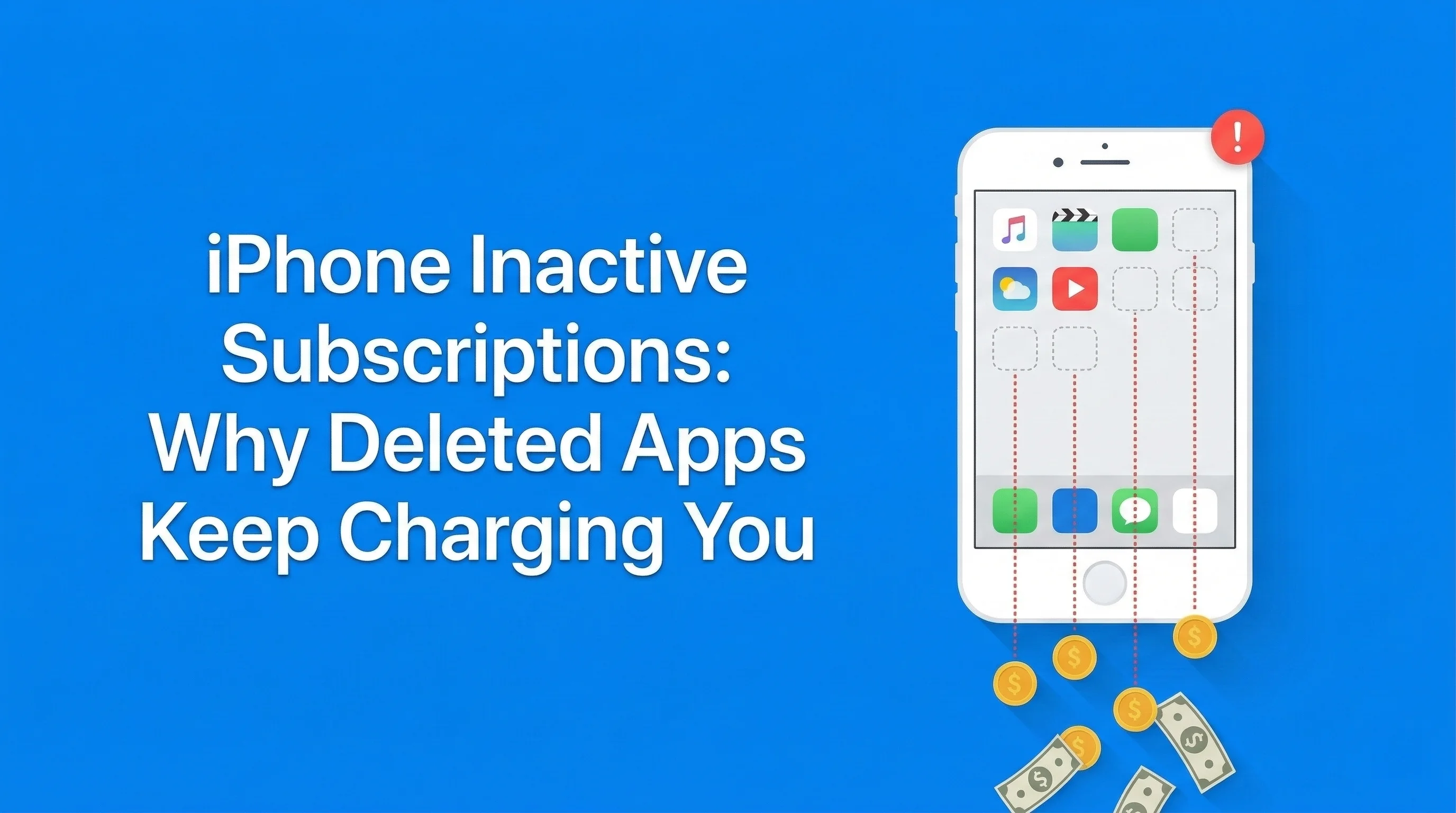
Table of Contents
Here's a fact that surprises almost everyone: deleting an app from your iPhone does NOT cancel its subscription. The app disappears from your home screen, but the charges keep rolling in — silently, month after month, sometimes for years.
This is the "inactive subscription trap," and it's costing iPhone users an average of $38/month in charges for apps they don't even have installed anymore. If that number sounds high, it's because most people have no idea it's happening to them.
The Numbers: Apple processes over $85 billion annually through the App Store. A significant portion comes from subscriptions that users believe they cancelled when they deleted the app. Apple makes it easy to subscribe — one tap with Face ID — but deliberately separates deletion from cancellation.
Let me show you exactly how to find these phantom charges, kill them, and make sure they never come back.
Why Deleting an App Doesn't Cancel Its Subscription
On iOS, an app and its subscription are treated as two completely separate things:
- The app is software installed on your device. You can delete and reinstall it freely.
- The subscription is a billing agreement between you and Apple (or the developer). It lives in your Apple ID account, not on your device.
Think of it like cancelling your cable but keeping the TV. The TV (app) is just the viewer — the billing (subscription) runs independently. Apple designed it this way so you can reinstall apps without losing your premium access, but the side effect is devastating for forgetful users.
The Three Ways iPhone Subscriptions Trick You
- Face ID one-tap subscribe: You confirm with a glance and forget immediately. No password, no confirmation email you'd actually read.
- Free trial auto-conversion: The 7-day trial converts to a paid subscription with zero notification. The only "confirmation" is a receipt buried in your email.
- Annual billing invisibility: A $49.99/year charge hits once and then vanishes from your awareness for 364 days. By the time it charges again, you've forgotten you signed up.
How to Find Inactive Subscriptions on Your iPhone
Apple shows you the full list — but they don't make it easy to find. Here's the exact path:
Method 1: Through Settings (Fastest)
- Open Settings.
- Tap your name at the top (your Apple ID).
- Tap Subscriptions.
You'll see two sections:
- Active: Subscriptions currently charging you. This is where the money is going.
- Inactive: Subscriptions you've successfully cancelled. These are just historical records — they're not charging you.
Method 2: Through the App Store
- Open the App Store.
- Tap your profile icon (top right).
- Tap Subscriptions.
This shows the same list but can be useful if you're already in the App Store.
What to Look For
In the Active section, look for apps that:
- You don't recognize the name of
- You haven't used in weeks or months
- You deleted from your phone (the subscription persists!)
- Show a renewal date coming up soon
- Were free trials you forgot about
Common culprits: Weather apps with premium tiers, photo editors, fitness trackers, meditation apps, QR code readers (yes, people pay for these), and PDF scanners. These low-cost ($2-8/month) subscriptions are the most likely to fly under the radar.
How to Cancel Inactive iPhone Subscriptions Properly
Once you've identified active subscriptions you don't want, here's how to cancel:
- Go to Settings → [Your Name] → Subscriptions.
- Tap the subscription you want to cancel.
- Tap Cancel Subscription (or Cancel Free Trial).
- Confirm the cancellation.
Important Details About Cancellation
- You keep access until the end of your current billing period. No refund for partial periods, but you don't lose what you paid for.
- The subscription moves to the "Inactive" section after the billing period ends.
- You can resubscribe at any time if you change your mind — you're not locked out forever.
- Family Sharing subscriptions can only be cancelled by the person who originally subscribed.
What If "Cancel Subscription" Doesn't Appear?
If there's no cancel button, the subscription wasn't purchased through Apple:
- Open the app itself and go to Account/Settings → Billing
- Visit the company's website and cancel from your account dashboard
- Check your email for the original confirmation — it usually includes cancellation instructions
- Contact the company's support directly
Can You Remove Inactive Subscriptions From the List?
This is one of the most-searched questions about iPhone subscriptions, and the answer is frustrating: No, you cannot manually delete entries from the inactive subscriptions list.
Apple keeps this history as a record. Here's what you need to know:
- Inactive subscriptions are not charging you — they're just historical entries
- They automatically disappear from the list after approximately one year
- There's no privacy concern — the data is tied to your Apple ID and only visible to you
- If you're bothered by the clutter, check back in a few months and old entries will have vanished
The real concern isn't the inactive list — it's the active list. If you see something in "Active" for an app you deleted, that's the one costing you money. Focus your energy there.
Finding Charges That Don't Show in Apple Subscriptions
The Apple Subscriptions page only shows subscriptions billed through the App Store. Many apps bill directly, bypassing Apple entirely:
Check Your Bank Statement
Search your banking app for:
- "APPLE.COM/BILL" — These are App Store charges. Cross-reference amounts against your subscription list.
- App company names — Search for "Netflix," "Spotify," "Adobe," etc. directly.
- Unfamiliar recurring charges — Sort by amount and look for repeating charges you don't recognize.
Check Email Receipts
Search your email for:
- "Your subscription," "renewal confirmation," "payment receipt"
- "Your free trial," "trial ending," "trial converted"
- "APPLE.COM/BILL" or "iTunes Store"
Check Other App Stores
If you've ever used an Android device, you may have Google Play subscriptions running too. Check play.google.com → Payments & subscriptions.
How to Prevent the Inactive Subscription Trap
Now that you've cleaned house, here's how to make sure it doesn't happen again:
Rule 1: Cancel Before You Delete
Make it a habit: always cancel the subscription first, then delete the app. Never assume deletion handles cancellation — it doesn't and never will.
Rule 2: Track Every Free Trial
The moment you start a free trial:
- Note the trial end date (shown in Subscriptions).
- Add it to a tracker like SubBuddy with the end date.
- Set a reminder for 2 days before it converts to paid.
Rule 3: Monthly Subscription Check
Set a monthly calendar reminder to visit Settings → [Your Name] → Subscriptions. It takes 60 seconds and catches any new charges before they become long-term waste.
Rule 4: Use a Subscription Tracker
SubBuddy was built for exactly this problem. Add your subscriptions once and get:
- Renewal reminders before you're charged
- A visual calendar showing when every charge hits
- Analytics showing your total spend by category
- Trial tracking with automatic alerts
Can You Get a Refund for Inactive App Subscriptions?
If you've been charged for a subscription after deleting the app, you can request a refund from Apple:
- Go to reportaproblem.apple.com
- Sign in with your Apple ID
- Find the charge in your purchase history
- Select "I'd like to request a refund"
- Choose the reason (e.g., "I didn't intend to renew this subscription")
Apple reviews refund requests individually. You're more likely to succeed if:
- The charge was recent (within 14 days is best)
- You haven't requested many refunds before
- You can show you didn't use the app during the billing period
Pro tip: If Apple denies the refund through the website, try calling Apple Support directly. Phone representatives have more flexibility than the automated system.
Frequently Asked Questions
Does deleting an iPhone app cancel its subscription?
No. Deleting an app and cancelling its subscription are completely separate actions on iOS. You must cancel from Settings → [Your Name] → Subscriptions before or after deleting the app.
How do I find all subscriptions on my iPhone?
Go to Settings → tap your name → Subscriptions. This shows all active and recently inactive App Store subscriptions. For non-App Store subscriptions, search your bank statement and email for recurring charges.
Why do inactive subscriptions still show on my iPhone?
Apple keeps a record of cancelled subscriptions for approximately one year. They're not charging you — they're just historical entries that disappear automatically over time. You cannot manually remove them.
Can I get a refund for a subscription I forgot to cancel?
Possibly. Visit reportaproblem.apple.com, find the charge, and select "I'd like to request a refund." Apple reviews requests individually, with recent charges more likely to be refunded.
How do I stop apps from auto-renewing on iPhone?
Go to Settings → [Your Name] → Subscriptions → tap the subscription → Cancel Subscription. The subscription will remain active until the end of your current billing period, then stop renewing.
Alex Coca
Founder & CEO of SubBuddy. After being charged for 4 apps he'd deleted months earlier, Alex built SubBuddy to help iPhone users track every subscription and never pay for a deleted app again.
Stop Paying for Apps You've Already Deleted
SubBuddy tracks all your subscriptions with renewal reminders — so you'll never be surprised by a charge from a forgotten app again.
Start Tracking for FreeRelated Articles

I Found 9 Hidden Subscriptions in My iPhone Bill in 10 Minutes
Last Sunday I opened Subscriptions on my iPhone out of curiosity. Nine charges I'd totally forgotten were sitting there. Here's the exact 4-step process.
The Hidden Cost of Free Trials: How $0 Becomes $500/Year
That 'free' trial you forgot about? It's not free anymore. Discover how forgotten free trials are costing Americans an average of $500 per year.
The Complete Guide to Canceling Subscriptions on Every Platform (2025)
Canceling subscriptions should be simple, but companies make it intentionally difficult. Here's your step-by-step guide.