The Subscription Rotation Playbook: How to Watch Everything for $15–30/Month in 2026
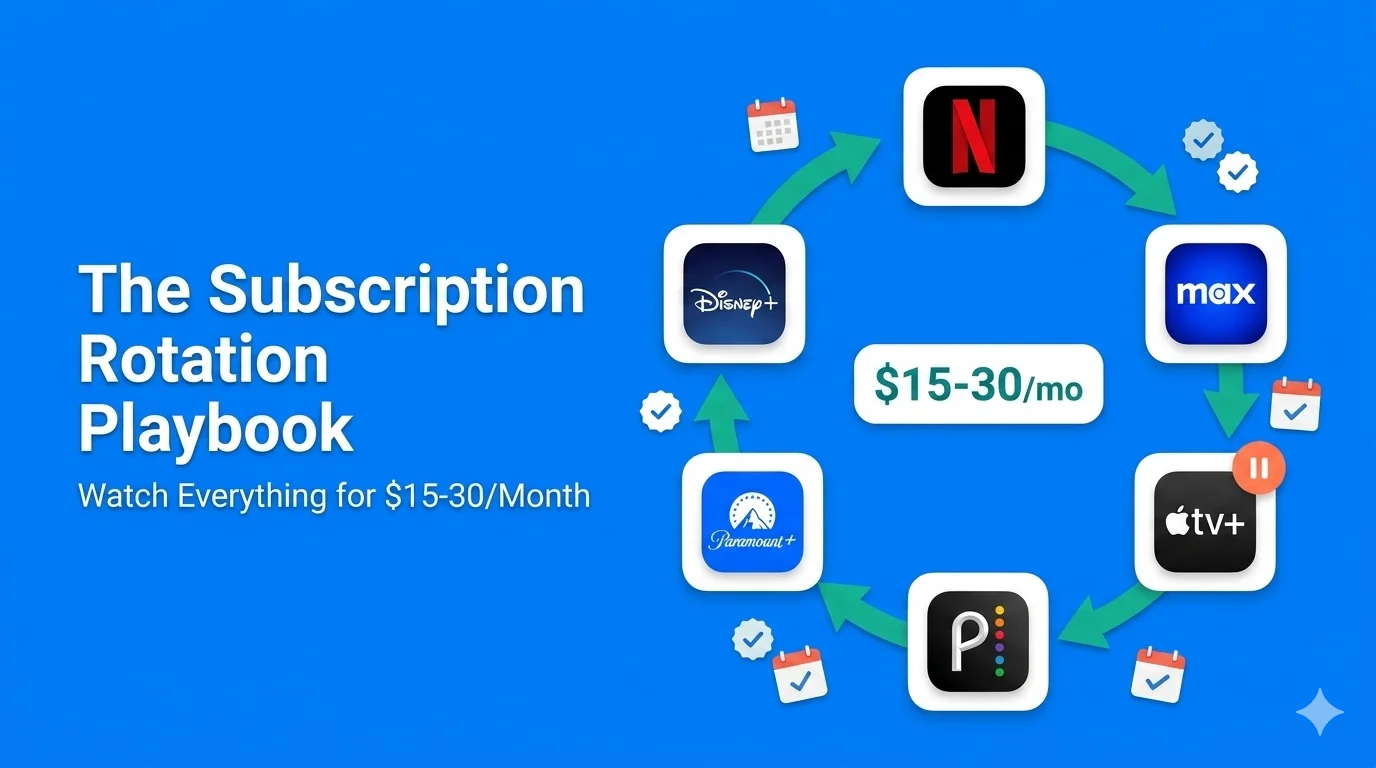
Table of Contents
Here's a number that should make every streaming subscriber uncomfortable: the average American household pays for 4.7 streaming services simultaneously but actively uses only 1.7 of them at any given time.
That means three subscriptions are sitting idle every single month, quietly charging your credit card while you binge the one show you actually care about.
But there's a growing movement of consumers who have figured out a better way. They don't pay $80–120/month for a stack of services. They pay $15–30/month and watch everything.
Pricing methodology: Streaming prices in this playbook are based on public pricing pages as of early 2026. Services change pricing frequently; verify before subscribing. The household savings estimates assume rotation between 1–2 paid services at a time versus maintaining 4+ simultaneous subscriptions.
Their secret? Subscription rotation.
The math is simple: If you rotate through 5 streaming services one at a time instead of paying for all 5 simultaneously, you save $600–$1,000 per year. That's a vacation. That's 6 months of groceries for one person. That's real money.
This guide is the definitive playbook for subscription rotation in 2026, covering the strategy, month-by-month calendar, tools, and exact steps to never overpay for streaming again.
What Is Subscription Rotation? (And Why It's the Smartest Move of 2026)
Subscription rotation is exactly what it sounds like: instead of maintaining 4–6 streaming subscriptions year-round, you subscribe to one or two services at a time, binge the content you want, cancel, and move to the next one.
Think of it like a library. You don't buy every book at the store; you borrow one, read it, return it, and pick up the next. Streaming should work the same way.
Why Rotation Works in 2026
Three things have changed that make rotation not just viable, but optimal:
- No contracts, no penalties: Every major streaming service lets you cancel instantly with no fees. You keep access until the end of your billing cycle. There is literally zero downside to canceling.
- Content drops in waves: Platforms release their biggest shows in clusters and then have dead periods. Netflix might have 3 major releases in October and nothing you care about in November. Why pay for November?
- Prices keep climbing: Netflix Premium is now $24.99/month. Disney+ is $16.99 ad-free. Max is $16.99. Peacock is $13.99. Stacking all of them costs over $70/month, or $840/year, approaching the cable bills people fled from in the first place.
Rotation vs. Traditional Stacking
| Traditional Stacking | Rotation Strategy | |
|---|---|---|
| Monthly cost | $70–120 | $15–30 |
| Annual cost | $840–1,440 | $180–360 |
| Content access | Everything, all the time (mostly unwatched) | Everything, spread over the year |
| Effort | Set and forget | ~5 minutes/month to manage |
| Annual savings | — | $660–1,080 |
The 5 Rules of Subscription Rotation
Before we get into the monthly calendar, here are the core rules that make rotation work without missing anything you actually want to watch.
Rule 1: Keep One "Base" Service Year-Round
Pick one service that your household uses daily. For most people, this is Netflix (deepest library, constant releases) or YouTube Premium (doubles as a music service). This is your only permanent subscription. Everything else rotates.
Rule 2: Subscribe on Release Day, Cancel on Day 1
When a show you want to watch launches on a platform, subscribe that day. Immediately go to your account settings and cancel the subscription. You won't lose access; you'll keep the service until the end of your billing period (usually 30 days). This guarantees you never forget to cancel and never pay for a second month you didn't intend to.
This is the single most important trick in this entire guide. Cancel on Day 1. You still get the full month. You just won't get charged again.
Rule 3: Always Choose the Ad-Supported Tier for Rotation
If you're only keeping a service for one month, there's no reason to pay premium prices. The ad-supported tier of most services saves you $4–8/month and delivers the same content. You're here to binge one show, so a few ads won't kill you.
- Netflix Standard with Ads: $7.99/month (vs. $17.99 without ads)
- Disney+ with Ads: $9.99/month (vs. $16.99 ad-free)
- Max with Ads: $9.99/month (vs. $16.99 ad-free)
- Peacock with Ads: $7.99/month (vs. $13.99 ad-free)
- Paramount+ Essential: $7.99/month (vs. $12.99 without ads)
Rule 4: Let Content Accumulate Before Subscribing
Don't subscribe the moment a show is announced. Wait 2–3 months for a service to build up a backlog of content. Then subscribe, binge everything at once, and cancel. You'll get more value per dollar this way.
For example: Instead of subscribing to Apple TV+ in January for one show and again in March for another, wait until March and watch both shows for the price of one month.
Rule 5: Use a Tracker to Manage Your Rotation
Rotation only works if you know exactly what you're paying for, when your billing cycles end, and what's on your "to watch" list for each platform. This is where a subscription tracker becomes essential, not optional. Use your tracker's pause feature to mark services as "paused" when you cancel them (so they stay in your list for when you re-subscribe) and use tags to organize your rotation queue.
The 2026 Subscription Rotation Calendar
Here's a month-by-month guide to which services to subscribe to based on major content releases and seasonal events. Your "base" service (Netflix or YouTube Premium) stays constant. Everything else follows this rotation.
🗓️ January: Max
Why: HBO's prestige TV season kicks off. Award-season films arrive. New seasons of HBO originals typically premiere in Q1.
Also watch: Catch up on anything you missed from Max's library during the holidays.
Cost: $9.99 (with ads)
🗓️ February: Paramount+ or Apple TV+
Why: Super Bowl streams on Paramount+. Apple TV+ drops major premieres in early Q1 (new seasons of Severance, Ted Lasso, The Morning Show).
Also watch: Catch up on Paramount+ originals or Apple's entire catalogue from the past few months.
Cost: $7.99–$9.99
🗓️ March: Disney+ (or Disney+/Hulu Bundle)
Why: Spring break viewing. Marvel/Star Wars releases cluster in Q1. Hulu's FX originals also drop new seasons.
Also watch: If you have kids, this is the month to gorge on the Disney library.
Cost: $9.99–$12.99 (bundle with Hulu for better value)
🗓️ April: Peacock
Why: Premier League enters its final stretch. Bravo reality shows are in full swing. Post-March Madness gap means less competition for your attention.
Also watch: NBC Universal movies, The Office (if you're rewatching), and original series.
Cost: $7.99
🗓️ May: Max (Round 2)
Why: HBO's summer blockbuster season begins. May/June is historically when HBO drops its biggest originals. New seasons of The Last of Us, Euphoria, or House of the Dragon typically land here.
Also watch: Warner Bros. theatrical releases arrive on Max roughly 45 days after cinema.
Cost: $9.99
🗓️ June: Disney+ (Round 2) or Hulu
Why: Summer Marvel/Pixar releases. Kids are out of school. Hulu's summer originals and FX shows arrive.
Cost: $9.99
🗓️ July: Apple TV+ or Pause Month
Why: Summer is historically the slowest period for streaming releases. This is a great month to go outside, read a book, or use free ad-supported services like Tubi, Pluto TV, or The Roku Channel.
Alternative: If Apple TV+ has dropped content since February, catch up here.
Cost: $0–$9.99
🗓️ August: Paramount+
Why: NFL preseason begins. Paramount+ originals (Yellowstone universe, Star Trek) often drop new seasons in late summer.
Cost: $7.99
🗓️ September: Peacock or ESPN+
Why: NFL regular season begins. Peacock has Sunday Night Football. ESPN+ has Monday Night Football and college football. Pick based on your team's schedule.
Cost: $7.99–$11.99
🗓️ October: Max (Round 3)
Why: HBO's fall prestige season. Halloween-themed content across Warner Bros. library. New originals premiere for awards season push.
Cost: $9.99
🗓️ November: Disney+ or Hulu
Why: Disney and Marvel's Q4 tentpole releases. Hulu's fall originals. Holiday content starts appearing.
Pro tip: Look for Black Friday deals. Streaming services often offer 3-month subscriptions at massive discounts (sometimes $1.99/month).
Cost: $1.99–$9.99
🗓️ December: Apple TV+ or Pause Month
Why: Apple typically drops its biggest releases in late Q4 for awards season (Killers of the Flower Moon style). Also a good time to catch up on their full-year library.
Alternative: Another pause month. You've got holiday activities and might not watch much.
Cost: $0–$9.99
Full-Year Cost Summary
| Approach | Services | Annual Cost |
|---|---|---|
| Stack everything | Netflix + Disney+ + Max + Peacock + Paramount+ + Apple TV+ | $780–$1,200/year |
| Rotation (with ads) | Netflix base + 1 rotating service/month | $196–$240/year |
| Rotation (with pause months) | Netflix base + rotating service (10 months) | $176–$200/year |
Bottom line: Rotation saves you $580–$1,000 per year compared to keeping everything active. And you still watch everything, just not simultaneously.
How Streaming Bundles Fit Into Rotation
Bundles are the streaming industry's answer to rotation: they want you to pay for multiple services in one package so you don't cancel individual ones. But bundles can actually enhance your rotation strategy if you use them right.
The Best Bundles in 2026
| Bundle | Monthly Price (with Ads) | Savings vs. Individual | Best For |
|---|---|---|---|
| Disney+ & Hulu | $12.99 | ~$7/month | Families, FX fans |
| Disney+ / Hulu / Max | $19.99 | ~$10/month | Prestige TV + family content |
| Disney+ / Hulu / ESPN Select | $19.99 | ~$12/month | Casual sports fans |
When to Use a Bundle vs. Single Service
- Use a bundle when you plan to watch content on 2+ services in the same month (e.g., a Disney+ original and an HBO original both releasing in May). The bundle price is often cheaper than subscribing to both individually.
- Use a single service when you only need one platform's content. Paying $19.99 for a Disney+/Hulu/Max bundle when you only want to watch one show on Max is wasteful. Just pay $9.99 for Max alone.
The Bundle Rotation Hack
Here's an advanced move: rotate between bundles instead of individual services. For example:
- Month 1: Disney+/Hulu/Max bundle ($19.99), with content from all three
- Month 2: Cancel bundle, subscribe to Peacock alone ($7.99)
- Month 3: Cancel Peacock, subscribe to Apple TV+ ($9.99)
- Month 4: Cancel Apple TV+, re-subscribe to the bundle for another round
This gives you access to five services over four months for roughly $48 total instead of $200+ for all five simultaneously.
Free Alternatives for Pause Months
During rotation off-months (or if you want to take a full streaming break), these free services are surprisingly good:
Free Ad-Supported Streaming (FAST)
- Tubi: Massive library of movies and TV shows. Quality has improved dramatically in 2025–2026. Think of it as a free Netflix with ads.
- Pluto TV: Live TV channels organized by genre. Great for background viewing or channel-surfing nostalgia.
- The Roku Channel: Free movies, live news, and original content. Available on any device, not just Roku.
- Plex: Free ad-supported movies and shows, plus live TV channels. Also doubles as a media server if you have your own content.
- Freevee (via Amazon): Amazon's free tier with surprisingly decent original content.
Library Services (Completely Free)
- Kanopy: Free with your library card. Indie films, documentaries, and Great Courses. The "hidden gem" of free streaming.
- Hoopla: Free with your library card. Movies, TV shows, audiobooks, and comics. Much broader selection than Kanopy.
Pro tip: During pause months, check if your local library offers Kanopy or Hoopla access. Most people have no idea they can stream thousands of movies for free with just a library card.
How to Manage Your Rotation Without Going Crazy
The biggest objection to rotation is: "It sounds like a lot of work." It isn't if you use the right system. Here's how to set it up in 15 minutes and then spend less than 5 minutes per month managing it.
Step 1: Add ALL Services to Your Tracker (Even Paused Ones)
Open your subscription tracker and add every streaming service you might rotate through, including the ones you're not currently subscribed to. Use the pause feature for inactive services. This keeps them in your dashboard without counting toward your monthly spending total.
Step 2: Create Rotation Tags
Set up custom tags in your tracker to organize your rotation:
- "Active": currently subscribed
- "Queue: Next": the next service you plan to rotate into
- "Queue: Later": services you want but aren't urgent
- "Paused": currently unsubscribed, will return to later
Step 3: Build Your Watch List
Keep a running list of shows/movies you want to watch, organized by platform. When a platform's list gets long enough (3+ shows or 20+ hours of content), that's your signal to rotate in. Use the notes field for each service in your tracker to maintain your watch list.
Step 4: Set Billing Cycle Reminders
When you subscribe to a service, immediately set a reminder for 2 days before your billing cycle renews. This gives you time to decide: "Did I finish everything? Do I need another month, or should I rotate out?" A subscription tracker with renewal reminders can handle this automatically.
Step 5: Monthly 5-Minute Check-In
Once a month, spend 5 minutes on this:
- Check your active subscriptions. Are you using them?
- Check your watch list. Has a "Queue: Next" platform accumulated enough content?
- Cancel anything you're done with
- Subscribe to the next service in your queue (and immediately cancel to avoid auto-renewal)
7 Rotation Mistakes That Cost You Money
Mistake 1: Subscribing to Annual Plans
Annual plans are the enemy of rotation. They lock you in for 12 months, and the "discount" only saves you money if you'd actually use the service every single month. For rotators, monthly billing is always cheaper.
The only exception: if a service offers an insanely good Black Friday deal (like $1.99/month for 3 months), take it, but set a cancel reminder for when the promotional period ends.
Mistake 2: Forgetting to Cancel on Day 1
Subscribe and immediately cancel. You'll keep access until the billing period ends. If you wait until "later," you'll forget. This is the #1 reason rotation fails for people: they intend to cancel but never do.
Mistake 3: Paying for Premium Tiers When Rotating
If you're only keeping a service for 30 days, the ad-supported tier is always the right choice. You're saving $5–10/month per service, which adds up to $60–120/year across your rotation.
Mistake 4: Not Using Free Trial Periods
Many services offer 7-day free trials for new subscribers (or returning subscribers who've been away for a while). Always check before subscribing. A free week might be all you need to binge the one show you wanted.
Mistake 5: Subscribing for One Show Mid-Season
If a show drops episodes weekly over 8 weeks, don't subscribe in week 1 for $10. Wait until week 7 or 8, subscribe for one month, and watch all episodes at once. You get the same content for half the cost.
Mistake 6: Keeping a Service "Just in Case"
"But what if something good comes out?" is the most expensive question in streaming. If you're not actively watching something right now, cancel. You can always re-subscribe in 30 seconds if a must-watch show drops.
Mistake 7: Not Tracking Your Rotation
Without a tracker, rotation turns into chaos. You forget what you cancelled, when your billing cycles are, and which services you planned to subscribe to next. A tool like SubBuddy makes the difference between saving $50/month and losing track entirely.
Rotation for Families and Couples
Rotation gets trickier with multiple viewers who have different tastes. Here's how to make it work for households.
The Household Watch Council
Once a month, have a quick 5-minute conversation (yes, really, just 5 minutes):
- "What are you watching right now?" (Identify the service everyone is actively using)
- "What do you want to watch next?" (Add shows to the household watch list)
- "Which service should we rotate into next month?" (Agree on the next subscription)
The Two-Service Rule for Families
Families with kids or couples with very different tastes might need to keep two base services instead of one:
- Base 1: Netflix (broad appeal, something for everyone)
- Base 2: Disney+ (essential for kids, Marvel/Star Wars for parents)
- Rotating service: Max, Peacock, Paramount+, or Apple TV+, one at a time
Even with two base services, you're still saving $350–600/year compared to stacking everything.
Share the Rotation Schedule
Use a shared subscription tracker so you and your partner both see the same dashboard. When one person adds a show to the watch list, the other sees it. When someone cancels a service, everyone knows.
Real-World Savings: 3 Rotation Examples
Example 1: The Solo Streamer
| Before (Stacked) | After (Rotation) | |
|---|---|---|
| Netflix Standard | $17.99/month year-round | $17.99/month year-round (base) |
| Max | $16.99/month year-round | $9.99/month × 3 months |
| Disney+ | $16.99/month year-round | $9.99/month × 3 months |
| Apple TV+ | $9.99/month year-round | $9.99/month × 2 months |
| Peacock | $13.99/month year-round | $7.99/month × 2 months |
| Annual total | $911.40 | $311.82 |
| Annual savings | — | $599.58 |
Example 2: The Couple
| Before (Both Paying) | After (Shared Rotation) | |
|---|---|---|
| Netflix | $17.99 × 2 = $35.98/month | $17.99/month (one account) |
| Disney+ | $16.99 × 2 = $33.98/month | $9.99/month × 4 months |
| Max + Peacock + Others | $40.97 × 2 = $81.94/month | $9.99–$12.99/month × 6 months rotating |
| Annual total | $1,822.80 | $355.70 |
| Annual savings | — | $1,467.10 |
Example 3: The Family (2 Kids)
| Before (Stacked) | After (2-Base Rotation) | |
|---|---|---|
| Netflix Premium | $24.99/month year-round | $24.99/month year-round (base 1) |
| Disney+ (no ads) | $16.99/month year-round | $16.99/month year-round (base 2 for kids) |
| Max | $16.99/month year-round | $9.99/month × 4 months |
| Peacock | $13.99/month year-round | $7.99/month × 3 months |
| Paramount+ | $12.99/month year-round | $7.99/month × 3 months |
| Apple TV+ | $9.99/month year-round | $9.99/month × 2 months |
| Annual total | $1,151.28 | $603.63 |
| Annual savings | — | $547.65 |
Get Started: Your First Rotation in 15 Minutes
Ready to start? Here's exactly what to do right now.
Today (15 minutes)
- List every streaming service you're paying for. Open your subscription tracker (or your bank statement) and identify every active subscription. Don't forget services bundled with your phone or internet plan.
- Pick your base service. Which ONE service do you use daily? That's your base. Everything else rotates.
- Cancel everything except your base. Yes, right now. You'll keep access until the end of each billing cycle. Use your tracker's pause feature so the services stay in your dashboard.
- Look at what you want to watch next. Check which platform has the shows/movies you're most excited about. That's Month 1 of your rotation.
- Subscribe to your first rotation service and immediately cancel it so you don't auto-renew.
This Week
- Set up your rotation tags (Active, Queue: Next, Queue: Later, Paused)
- Add shows to your watch list for each platform
- Share your dashboard with your partner/roommates if applicable
Every Month (5 Minutes)
- Review: Am I done with my current service?
- Cancel if done, subscribe to the next one in the queue
- Update your watch list
That's it. Fifteen minutes of setup, five minutes a month, and you'll save $600–1,000 this year.
Related reading: Learn how families are actually spending on streaming in 2026, see every 2026 subscription price increase, or discover the psychology behind why we don't cancel.
Sources
- C+R Research subscription spending study — data on how many simultaneous subscriptions households carry.
- Netflix plan and pricing help page.
- Disney+ pricing help page.
- Hulu plan pricing help page.
- SubBuddy's full streaming wars comparison guide for detailed service-by-service pricing.
Alex Coca
Alex Coca is the independent developer behind SubBuddy. He researches subscription billing, cancellation patterns, and recurring-spend workflows by building the product and reviewing real subscription audits from users and his own accounts.
Rotation Is Easy When You Can See Everything in One Place
Use SubBuddy's pause feature to manage your rotation queue, set cancel reminders, and track your streaming spending. See exactly how much you're saving month to month for free.
Start Rotating for FreeRelated Articles
The True Cost of Streaming in 2026: How Much Are Families Actually Spending?
Streaming was supposed to be the affordable alternative to cable. But in 2026, the average household is spending more than ever. We break down every major service's pricing and reveal what American families are really paying.
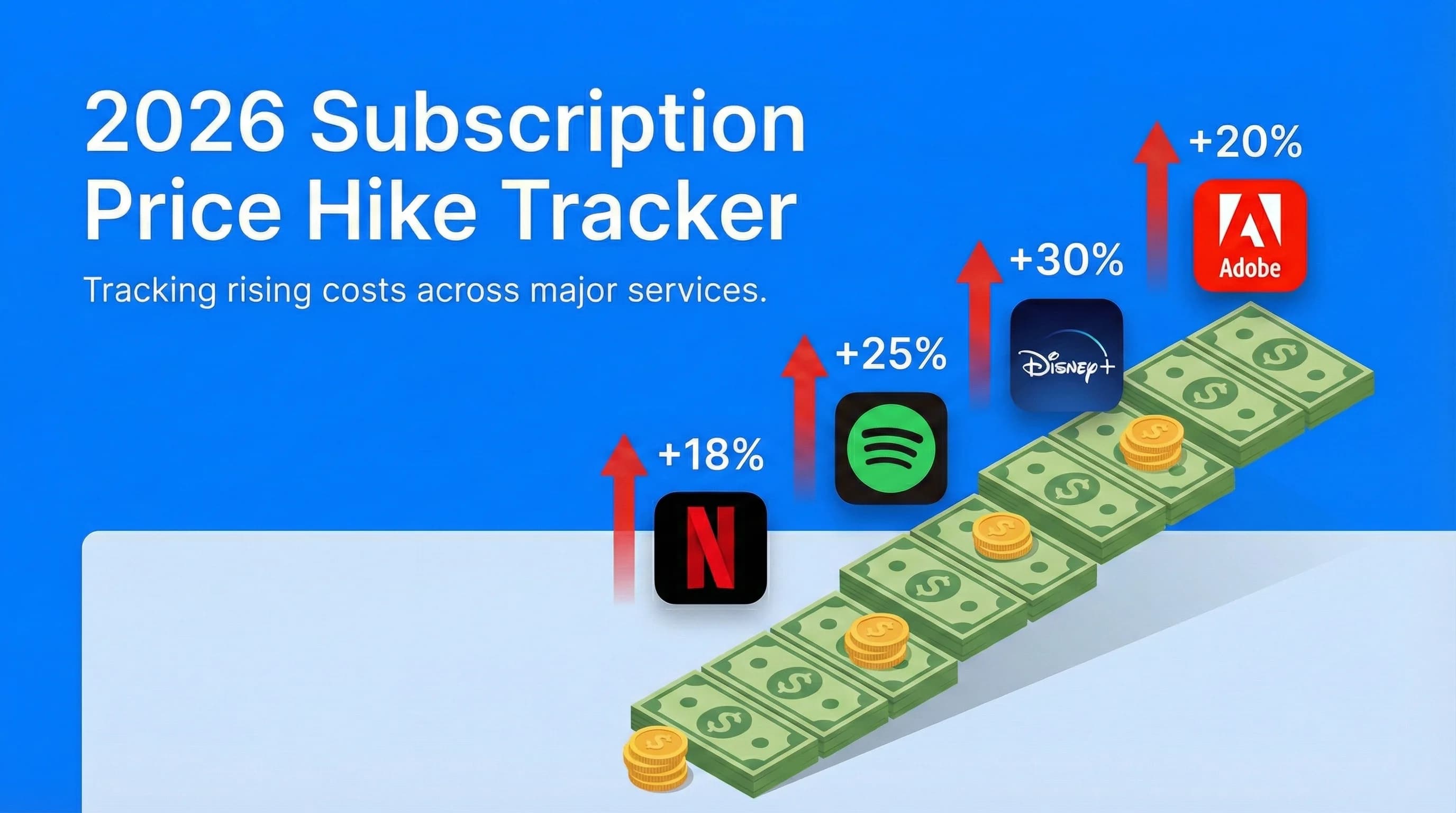
2026 Subscription Price Hike Tracker: Every Service That Raised Prices This Year
Netflix, Spotify, Disney+, Adobe, and other recurring services have all become more expensive heading into 2026. This tracker summarizes confirmed major subscription price increases, when they happened, and how much more you're paying.

The Psychology of Subscription Fatigue: Why We Don't Cancel
Ever wonder why you keep paying for that streaming service you haven't watched in months? It's not just laziness. It's psychology. We dive into the behavioral economics keeping you subscribed.