Google Play Subscription Audit: How to Find and Cancel Hidden Android App Charges in 10 Minutes
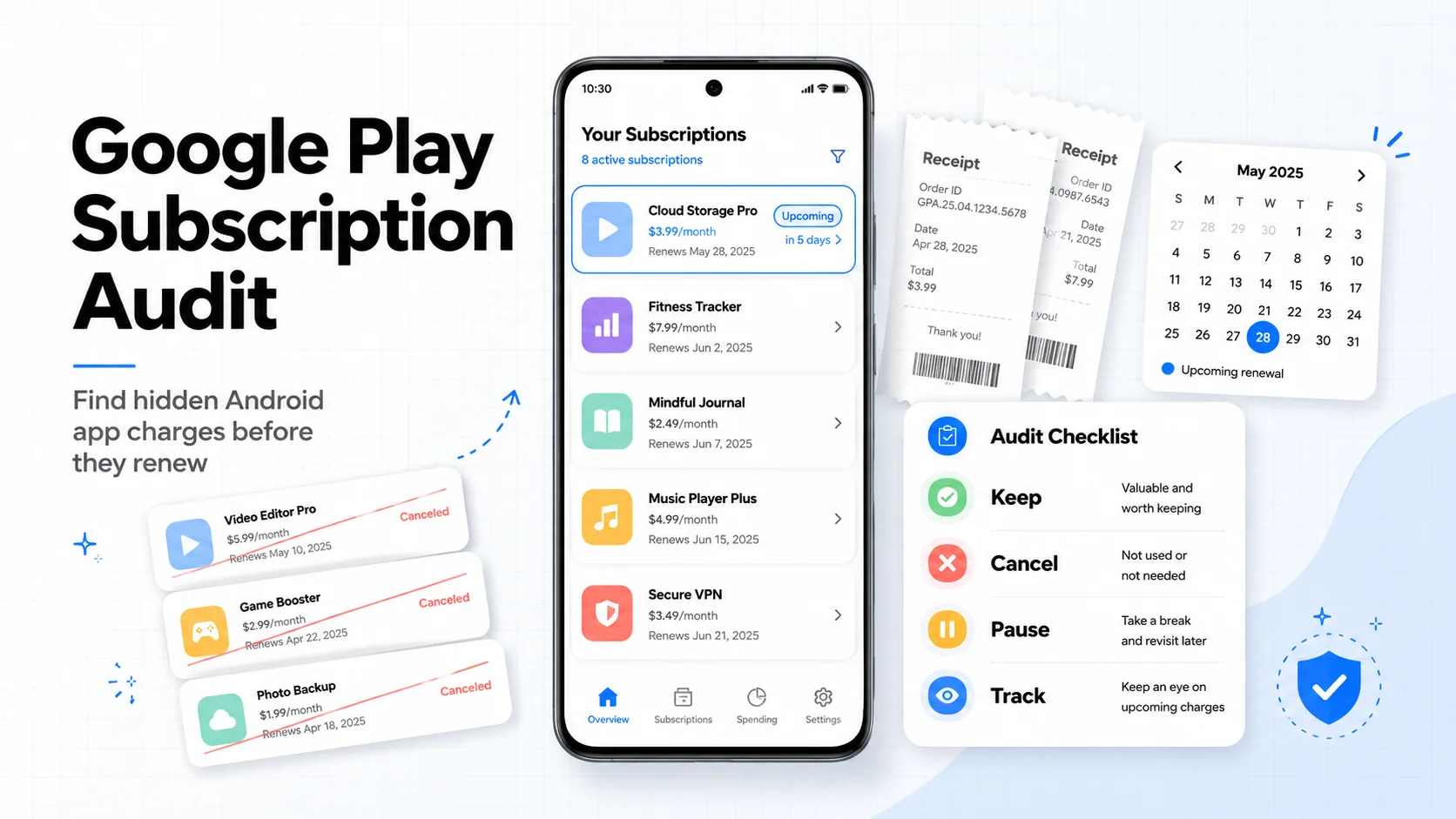
Table of Contents
Android subscriptions have a simple problem: they are easy to start, but they rarely stay visible after the first week.
You install a habit tracker, photo editor, scanner, VPN, kids app, fitness plan, or AI utility. The trial feels harmless. Google Play handles the billing. The app might disappear from your home screen months later, but the renewal can keep running until you cancel it from the right place.
That makes a Google Play audit one of the fastest subscription cleanups Android users can do. You are not trying to rebuild your whole budget. You are checking one billing system, then cross-checking the places where Android-related charges can hide.
Last reviewed: May 10, 2026. This guide uses official Google Play and Google Payments help pages checked on that date, plus current app-subscription market context from RevenueCat's 2026 subscription-app report.
Why Android App Subscriptions Are Easy to Miss
Google Play subscriptions are convenient by design. Developers can offer free trials, introductory pricing, multiple billing periods, upgrades, downgrades, pause options, and backup payment methods. Those are useful features, but they also create more places for recurring charges to quietly continue.
The bigger market trend is not slowing down either. RevenueCat's 2026 State of Subscription Apps report analyzes more than 115,000 apps and more than $16 billion in subscription revenue. The report also says new subscription-app launches have grown from about 2,000 per month three years ago to almost 15,000 per month now.
That is why this audit focuses on three lists instead of one:
- Active Google Play subscriptions: the obvious recurring charges tied to your Google Account.
- Google Play order history: app purchases, in-app purchases, annual renewals, and charges that may not look like a normal subscription.
- Payment and email records: direct web subscriptions, PayPal charges, card charges, and receipts from apps that bypass Google Play billing.
Step 1: Check Your Google Play Subscriptions
Start with the cleanest list. On Android:
- Open the Google Play Store.
- Tap your profile picture in the top right.
- Tap Payments & subscriptions.
- Tap Subscriptions.
Open every active subscription and write down four things: app name, price, next renewal date, and whether you used it in the last 30 days. If you manage multiple Google Accounts, switch accounts and repeat the same check. A subscription only appears under the Google Account that bought it.
Important: Uninstalling an Android app does not cancel the Google Play subscription. You still need to cancel from the subscription page or the app can keep renewing.
Use this quick decision table while you review the list:
| What you see | What it usually means | Best next action |
|---|---|---|
| Used this week | Still part of your routine | Keep, but add renewal reminder |
| Used once this month | Possible project-only tool | Cancel or pause after current project |
| No use in 30 days | Likely forgotten charge | Cancel unless there is a specific upcoming need |
| Annual plan with vague value | Easy to ignore for 11 months | Add review reminder 14 days before renewal |
| App deleted but subscription active | Deletion did not stop billing | Cancel now, then request refund if charge was recent |
Step 2: Check Budget and Order History
The Subscriptions screen is not the whole story. Google Play order history can reveal paid apps, in-app purchases, annual renewals, and charges that you forgot were tied to a Google Account.
On Android:
- Open the Google Play Store.
- Tap your profile picture.
- Tap Payments & subscriptions.
- Tap Budget & history.
Look for repeat names, annual charges, and apps you no longer recognize. A one-time in-app purchase is not a subscription, but it can point you to an app account that later moved to direct billing.
Also check payments.google.com. Google says Play order history and Google Payments history can show different slices of your purchases. In Google Payments, use Activity for transactions and Subscriptions & services for recurring services.
Step 3: Search Email and Card Statements
Google Play only shows subscriptions managed by Google Play. It will not catch every Android-related subscription.
Search your email and card statements for:
- Google Play, GOOGLE, and Google Payment.
- App names from your phone that do not appear in the Google Play subscription list.
- Trial keywords: trial, renewal, subscription, receipt, invoice, and payment failed.
- Payment providers: PayPal, Stripe, Paddle, FastSpring, and Xsolla.
This is where people often find subscriptions they started inside an Android app but paid for on the company's website. If the app does not appear in Google Play, cancel from the app's account settings or the company's billing portal.
Step 4: Cancel, Pause, or Downgrade
For subscriptions billed through Google Play, cancellation is direct:
- Go to Google Play Store > Payments & subscriptions > Subscriptions.
- Select the subscription.
- Tap Cancel subscription.
- Follow the confirmation steps.
After you cancel, Google says you keep access for the time you already paid for. That means canceling today usually stops the next renewal without cutting off the current paid period.
Some apps also let you pause a subscription at the end of the current billing period. Google documents pause windows that can range from one week to three months, depending on the app and subscription. Pause is useful for short breaks, but cancellation is cleaner when you are not sure you will come back.
When to cancel vs. pause vs. downgrade
| Decision | Use when | Risk |
|---|---|---|
| Cancel | You have not used the app in 30 days | You may need to resubscribe later |
| Pause | You know you need a short break | The subscription may resume when the pause ends |
| Downgrade | You use the app, but not enough for the current tier | You may lose premium features |
| Keep | The app supports daily work, health, family, or security | It still needs a renewal reminder |
What to Do If You Were Just Charged
Handle accidental renewals in this order:
- Cancel first. Stop the next renewal before dealing with the past charge.
- Take a screenshot. Save the cancellation confirmation or renewal date.
- Request a refund if the charge is recent. Google says refund eligibility depends partly on timing. Purchases within 48 hours may be eligible depending on the details.
- Contact the developer after 48 hours. Google directs many later refund issues to the developer, whose own policy may apply.
- Add the app to your tracker even after cancellation. If you keep access through the end of the paid period, track that end date so you can confirm it does not renew.
Refunds are not a plan. They are a fallback. The better system is a reminder before the renewal date.
What Google Play Will Not Show
If your audit feels incomplete, it probably is. Google Play will not reliably show:
- Subscriptions bought directly on an app's website.
- Subscriptions billed through PayPal, Stripe, Paddle, or another checkout.
- Work subscriptions paid by a company card.
- Services tied to another Google Account.
- Carrier billing or bundled phone-plan subscriptions.
- Samsung Galaxy Store subscriptions if they were not bought through Google Play.
This is why the final pass should be a payment search, not just an app-store check. Search your bank, card, PayPal, and email for the app names you found during the audit.
A Sample 10-Minute Android Subscription Audit
Here is a realistic example of what the audit might produce. The app names are categories, not recommendations.
| Subscription | Price | Last used | Billing path | Decision |
|---|---|---|---|---|
| Cloud storage upgrade | $2.99/month | Daily | Google Play | Keep |
| Scanner app | $39.99/year | 2 months ago | Google Play | Cancel after exporting files |
| Photo editor | $7.99/month | Not used | Google Play | Cancel |
| Language app | $12.99/month | Last vacation | Direct website | Cancel from website |
| VPN | $59.99/year | Weekly | PayPal | Keep, add annual reminder |
| Kids learning app | $4.99/month | Child no longer uses it | Google Play | Cancel |
In this example, the obvious Google Play list catches three cancellations. The payment and email pass catches two more subscriptions that would not have been obvious from the Play Store alone.
How to Track What You Keep in SubBuddy
Once the cleanup is done, the goal is not to remember everything manually. Add each subscription you keep to SubBuddy with enough detail that future-you can make a fast renewal decision.
| SubBuddy field | What to enter | Why it matters |
|---|---|---|
| Name | Exact app or service name | Makes bank and email searches easier later |
| Category | Mobile Apps, Software, Entertainment, Family, or Security | Shows where Android spend is clustering |
| Billing method | Google Play, PayPal, card, website, or carrier | Tells you where to cancel |
| Renewal date | Next billing date from Google Play or receipt | Lets you review before the charge lands |
| Cancellation URL | Google Play subscription page or the app billing page | Removes friction when you decide to cancel |
| Notes | Why you kept it and what would make you cancel | Prevents vague autopilot renewals |
For free trials, set the renewal date to the trial end date and add a reminder two or three days earlier. For annual plans, set a reminder at least two weeks before renewal so you have time to export files, downgrade, or move data.
The 10-Minute Google Play Audit Checklist
- Check Google Play > Payments & subscriptions > Subscriptions.
- Switch Google Accounts and repeat.
- Open Budget & history for past Google Play charges.
- Check payments.google.com for Activity and Subscriptions & services.
- Search email for trial, subscription, renewal, receipt, and invoice.
- Search card and PayPal activity for Google, app names, and payment processors.
- Cancel anything unused in the last 30 days.
- Pause or downgrade tools you use only occasionally.
- Request refunds quickly for recent accidental charges.
- Add every kept subscription to SubBuddy with renewal date and cancellation link.
Related reading: compare this with the iPhone hidden subscriptions audit, run a broader bank statement audit, or clean up risky trials with the free trial guide.
Sources
- Google Play Help: cancel, pause, or change a subscription for official Android subscription management steps.
- Google Play Help: review your order history for Budget & history and play.google.com order-history paths.
- Google Pay Help: find your Google purchase history for Activity and Subscriptions & services checks.
- Google Play refund policies for app, in-app purchase, and subscription refund timing.
- Google Play Console subscription setup for developer-side subscription features such as trials, billing frequency, and pause or plan changes.
- RevenueCat State of Subscription Apps 2026 for current subscription-app market context.
Alex Coca
Founder & CEO of SubBuddy. Alex writes practical subscription audit workflows for people who want renewal reminders and cancellation context without connecting a bank account.
Track Every Android Subscription Before It Renews
Add Google Play, website, PayPal, and card-billed app subscriptions to SubBuddy with renewal dates, cancellation links, and reminders before the next charge.
Start Tracking FreeRelated Articles
I Found 9 Hidden Subscriptions in My iPhone Bill in 10 Minutes - Here's Exactly How I Did It
The iPhone version of the same audit: where Apple hides subscriptions, how to cancel them, and what to check outside the App Store.
How to Audit Your Bank Statement and Find Hidden Subscriptions in 30 Minutes
A broader workflow for finding recurring charges that app stores, emails, and memory will miss.
The Hidden Cost of Free Trials: How $0 Becomes $500/Year
How forgotten trials turn into paid subscriptions and the reminder system that prevents it.