Small Business Software Subscription Audit Checklist: Cut SaaS Waste Without Breaking Your Workflow
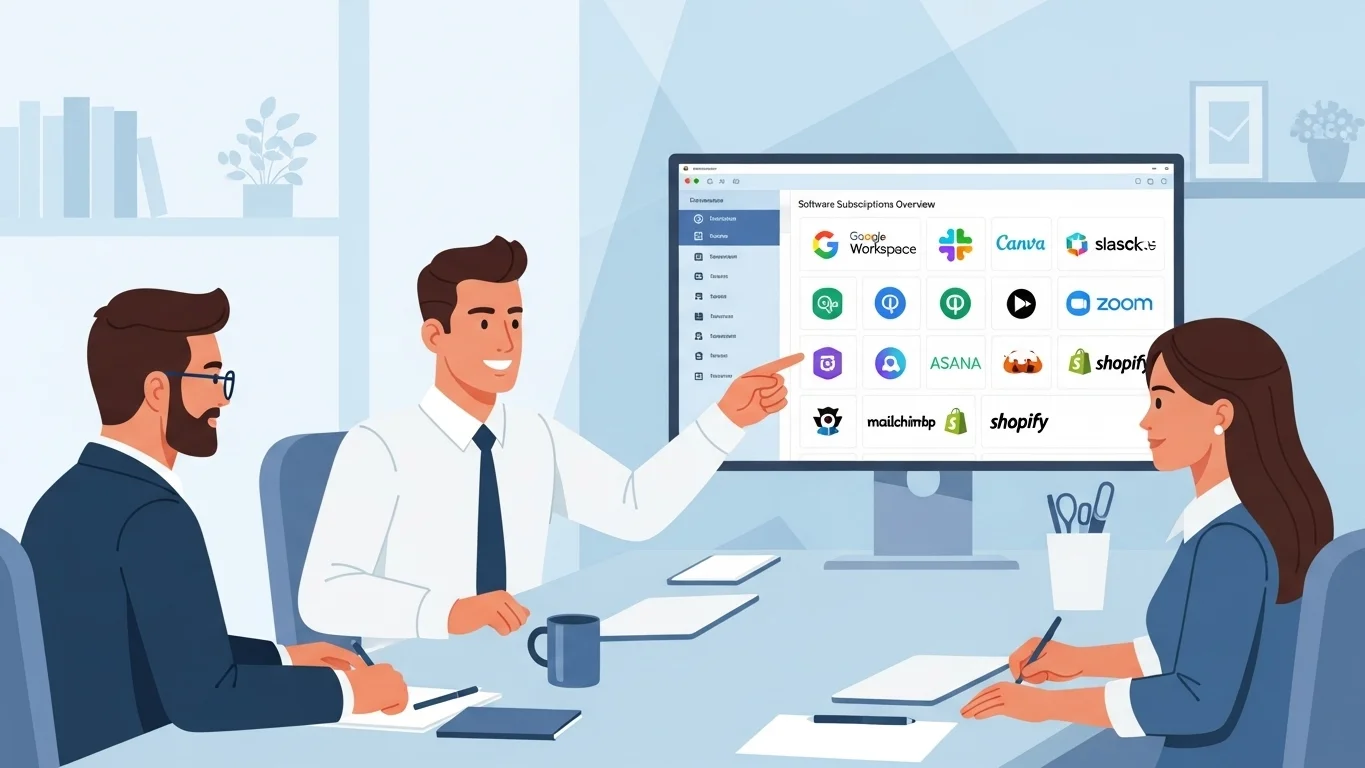
Table of Contents
Most small business software waste does not come from one obviously bad purchase. It comes from small decisions made during busy weeks: a second project tool for one client, an extra design seat nobody removed, a paid AI plan started for a launch, a file-storage upgrade that solved an emergency and then stayed forever.
The fix is not a generic "top 10 tools" list. A growing business needs an audit checklist: what you pay for, who owns it, how many seats are active, when it renews, and whether it still supports current work.
Audit goal: Build a single software register with every paid tool, renewal date, owner, seat count, payment method, and decision. Then cancel, downgrade, consolidate, or keep based on evidence instead of memory.
Step 1: Build the Software Inventory
Start by listing every recurring software charge from your bank statements, credit cards, PayPal, app stores, and email receipts. Include monthly, annual, per-seat, and usage-based tools.
Do not rely on memory. Small businesses usually have software hiding in several places:
- Owner's personal card
- Business credit card
- PayPal or Stripe receipts
- Apple or Google app-store billing
- Team members who expensed a tool once and kept it active
- Domain, hosting, analytics, or plugin renewals
Step 2: Track the Right Fields
A useful audit register needs more than name and price. For each tool, capture:
| Field | Example | Decision it supports |
|---|---|---|
| Owner | Marketing lead | Who can confirm usage? |
| Purpose | Email campaigns | Does it still solve a live problem? |
| Seat count | 8 paid, 5 active | Can we remove unused seats? |
| Billing cycle | Annual renewal on May 15 | When do we need to decide? |
| Payment method | Business Amex | Where will the charge appear? |
| Replacement risk | High: stores client files | How carefully should cancellation be handled? |
Step 3: Group Tools by Job, Not Brand
Template listicles usually say every business needs productivity, communication, accounting, project management, design, CRM, video, storage, password management, and documentation. That is directionally useful, but it can also push teams into buying tools before they need them.
Group your stack by job instead:
- Communication: email, chat, calls, customer support
- Money: accounting, invoicing, payroll, tax records
- Sales and marketing: CRM, email, scheduling, landing pages
- Operations: project management, documents, knowledge base
- Creative work: design, video, stock assets, AI tools
- Infrastructure: hosting, domains, analytics, security, backups
This makes duplicate coverage obvious. You may not have "too many tools" overall; you may have three tools doing the same job while another job has no clear owner.
Step 4: Audit Seats and Access
Per-seat pricing is where small software stacks quietly inflate. Review every tool that charges by user and compare paid seats to active users.
Seat audit checklist
- Remove ex-employees, contractors, and agencies that no longer need access.
- Downgrade users who only need view-only access.
- Check whether guests are free or billable.
- Confirm shared inboxes or aliases are not counted as paid seats.
- Review admin permissions while you are already inside the account.
Security note: A subscription audit is also an access audit. Removing unused seats saves money and reduces the number of accounts that can expose business data.
Step 5: Check Usage Before You Cancel
For each tool, ask the owner for one sentence: "We use this for ___, and the last meaningful use was ___." If nobody can answer, it becomes a cancellation candidate.
Use the tool's admin panel when possible. Many SaaS products show last login, active seats, project activity, storage, automations, or usage limits. That evidence is better than a vague feeling that the team "probably uses it."
Decision labels
- Keep: active, owned, and clearly tied to current work.
- Downgrade: useful, but the current tier or seat count is too high.
- Consolidate: overlaps with another tool you already pay for.
- Cancel: unused, ownerless, or tied to an old project.
- Watch: not enough evidence yet; review again before renewal.
Step 6: Put Renewals on a Calendar
The most expensive software decisions happen when an annual renewal arrives before anyone has reviewed usage. Add every renewal to SubBuddy with a reminder at least 30 days ahead. For larger annual tools, use 60 days so you have time to export data, compare alternatives, or negotiate.
| Tool type | Reminder timing | Why |
|---|---|---|
| Monthly self-serve app | 7 days before renewal | Enough time to remove seats or downgrade. |
| Annual SaaS plan | 30 days before renewal | Enough time for a usage check and cancellation window. |
| Critical business system | 60 days before renewal | Enough time for migration, export, or negotiation. |
Step 7: Cancel Without Breaking Workflows
Business software cancellations need a little more care than personal subscriptions. Before canceling, check what data, automations, customer records, invoices, or files live inside the tool.
- Export data and store it somewhere the business controls.
- Check integrations so cancellation does not break forms, emails, or automations.
- Notify anyone who still uses the tool.
- Screenshot confirmation after cancellation.
- Keep the tool in your tracker until the final access date passes.
How SubBuddy Fits the Audit
SubBuddy gives small teams a simple software register without turning the audit into an enterprise procurement project. Add each tool with its amount, billing cadence, category, owner note, payment method, and renewal reminder.
Use tags or notes for labels like "client work," "annual," "per-seat," "critical," "trial," or "review before renewal." The point is to make renewals visible early enough to make a decision.
Small Business Software Audit Checklist
- Download 12 months of card, bank, PayPal, and app-store transactions.
- Search email for "receipt," "invoice," "subscription," "renewal," and "trial."
- Add every software charge to one register.
- Assign an owner and purpose to each tool.
- Check paid seats against active users.
- Group tools by job to find duplicates.
- Export data before canceling anything important.
- Add renewal reminders 30-60 days before annual plans renew.
- Repeat the audit quarterly for monthly tools and before every annual renewal.
Sources and Business Notes
This checklist is a software-spend workflow, not tax, security, or procurement advice. It uses IRS small-business recordkeeping and expense resources, NIST small-business cybersecurity guidance, and FTC auto-renewal guidance as review anchors. Confirm deductibility, access controls, and cancellation terms with the relevant professional or vendor before making high-impact changes.
- IRS guide to business expense resources
- IRS Schedule C information
- IRS recordkeeping guidance for gig and self-employed work
- NIST Cybersecurity Framework 2.0: Small Business Quick-Start Guide
- FTC consumer guidance on free trials, auto-renewals, and negative option subscriptions
If you also want to review personal or household recurring expenses, use the recurring bills tracker guide. For a discovery workflow, start with the bank statement audit.
Alex Coca
Founder & CEO of SubBuddy. Alex built SubBuddy to make recurring software costs visible before renewal dates turn into surprise charges.
Put Every Software Renewal on One Dashboard
Track SaaS renewals, owners, costs, and review dates in SubBuddy so your business can cut waste without losing useful tools.
Start Tracking for FreeRelated Articles
My Tax Season Subscription Audit: How I Found $1,200 in Deductible Software I Forgot About
After the April filing rush, freelancers and small business owners still have a chance to improve records and build a better system for next year.
Recurring Bills Tracker: 5 Non-Subscription Expenses to Review Before They Renew
Streaming and app subscriptions are only part of recurring spend. Use this tracker framework for insurance, utilities, debt payments, annual memberships, and local services.
How to Audit Your Bank Statement and Find Hidden Subscriptions in 30 Minutes
Stop letting forgotten subscriptions drain your bank account. This step-by-step guide shows you exactly how to audit your statements and identify hidden charges.